AI smart alerts, drawn on the recording timeline
Fire, PPE, intrusion, crowd, tampering and more. Configured inside the VMS, marked on the timeline of the camera that saw them, one click from the footage.
What are AI video alerts?
AI video alerts are notifications raised by an analytics scenario evaluating a camera feed, rather than by a person watching a screen or a sensor reacting to pixel change. A scenario has a specific condition — smoke in frame, a worker without a helmet, a person crossing a perimeter line, a vehicle left where it should not be — and it raises an alert when that condition is met, with a snapshot, a timestamp and a severity level.
The part that changes how a shift actually works is not the detection itself. It is where the alert ends up. In a legacy stack, analytics is a separate product with its own console, so an alert arrives as an email or a row in another application, and finding the footage means switching tools, locating the camera, and navigating to a timestamp you have to copy across by hand.
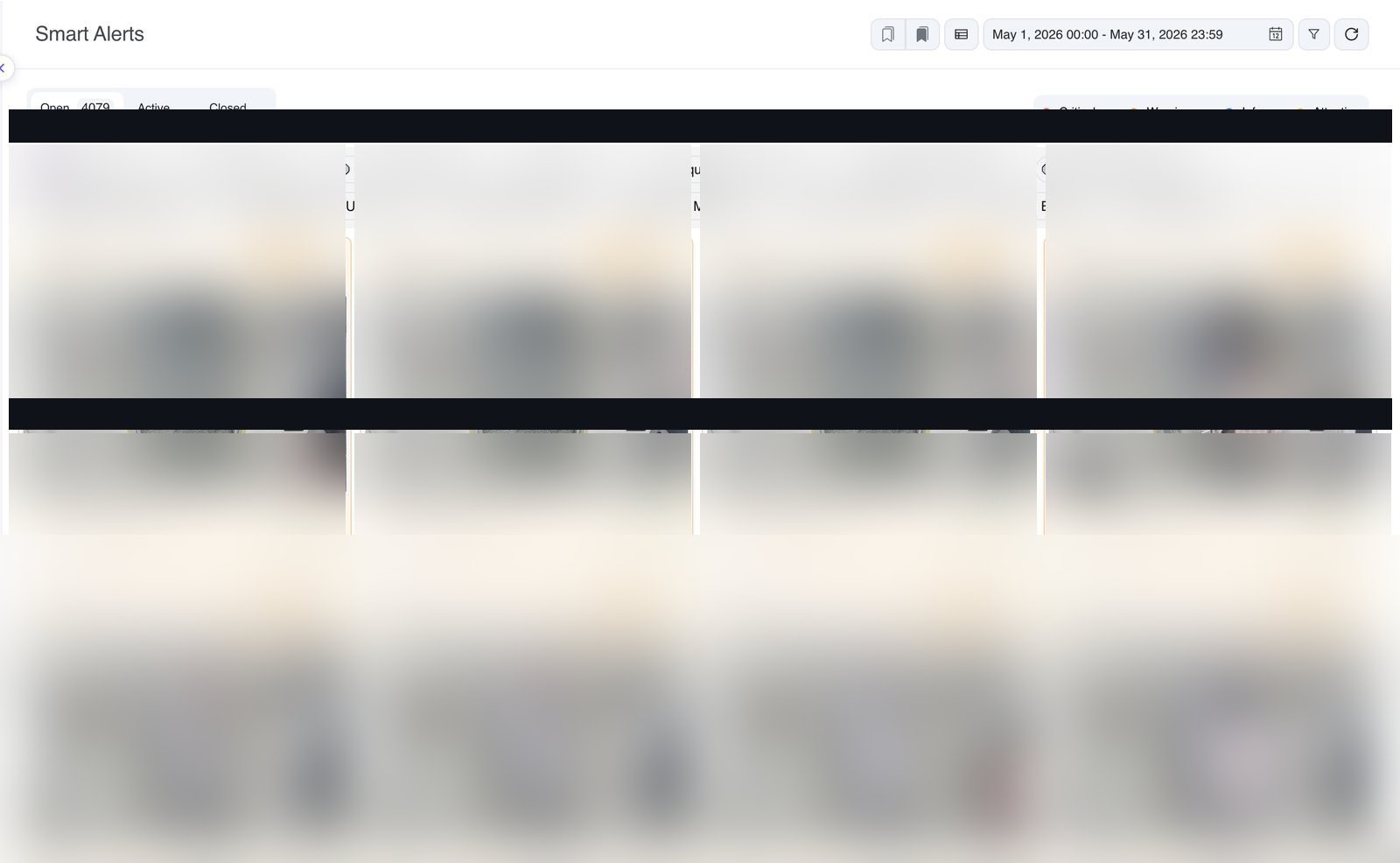
In VIZO361 the alert is a marker on the recording timeline of the camera that produced it, sitting alongside the recording tracks. Hover for a preview. Enlarge the snapshot. Click through to the footage. The gap between “something was detected” and “I am watching it” is one click, and it never leaves the VMS.
From configuration to footage in four steps
Configure inside the VMS
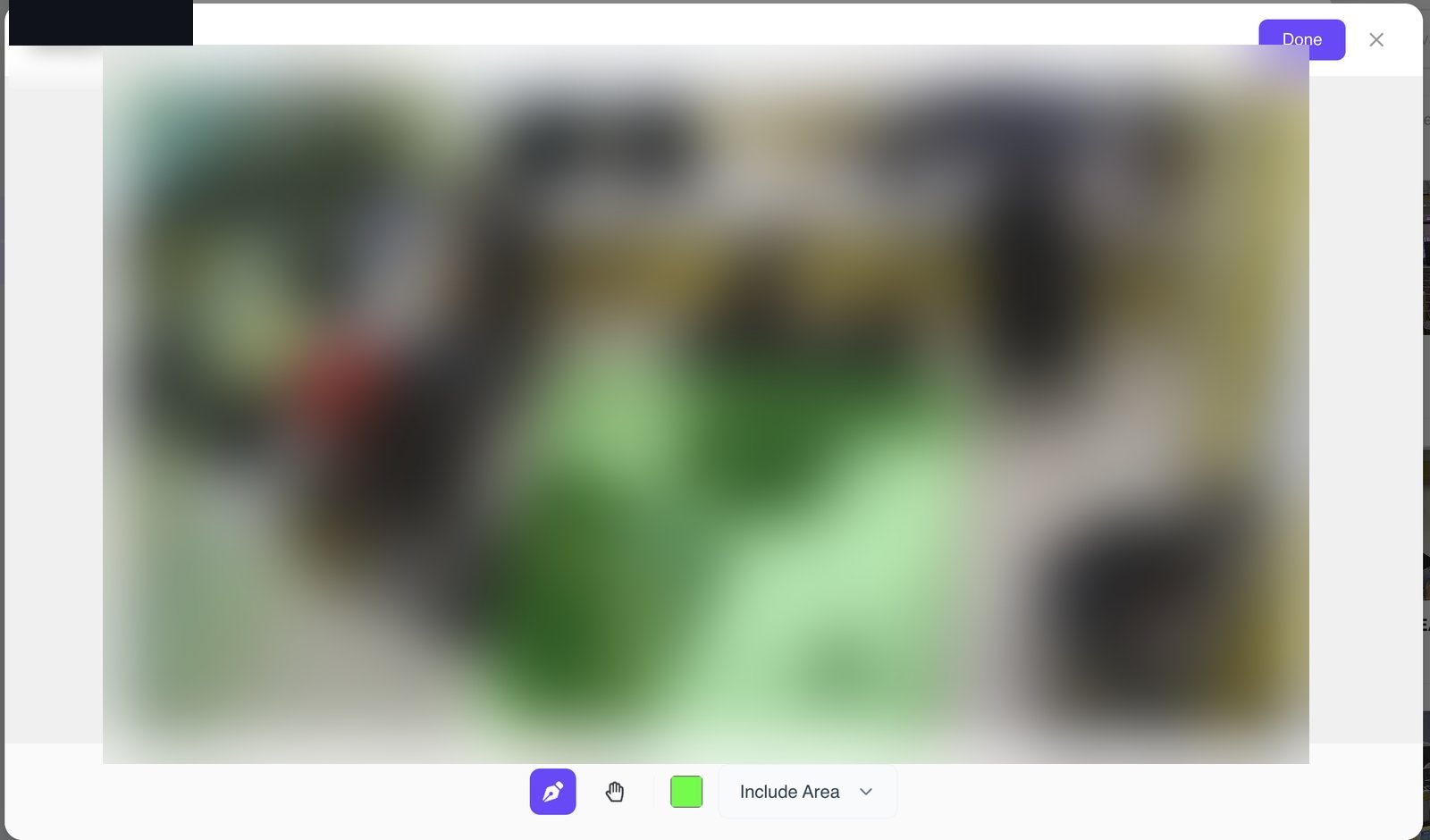
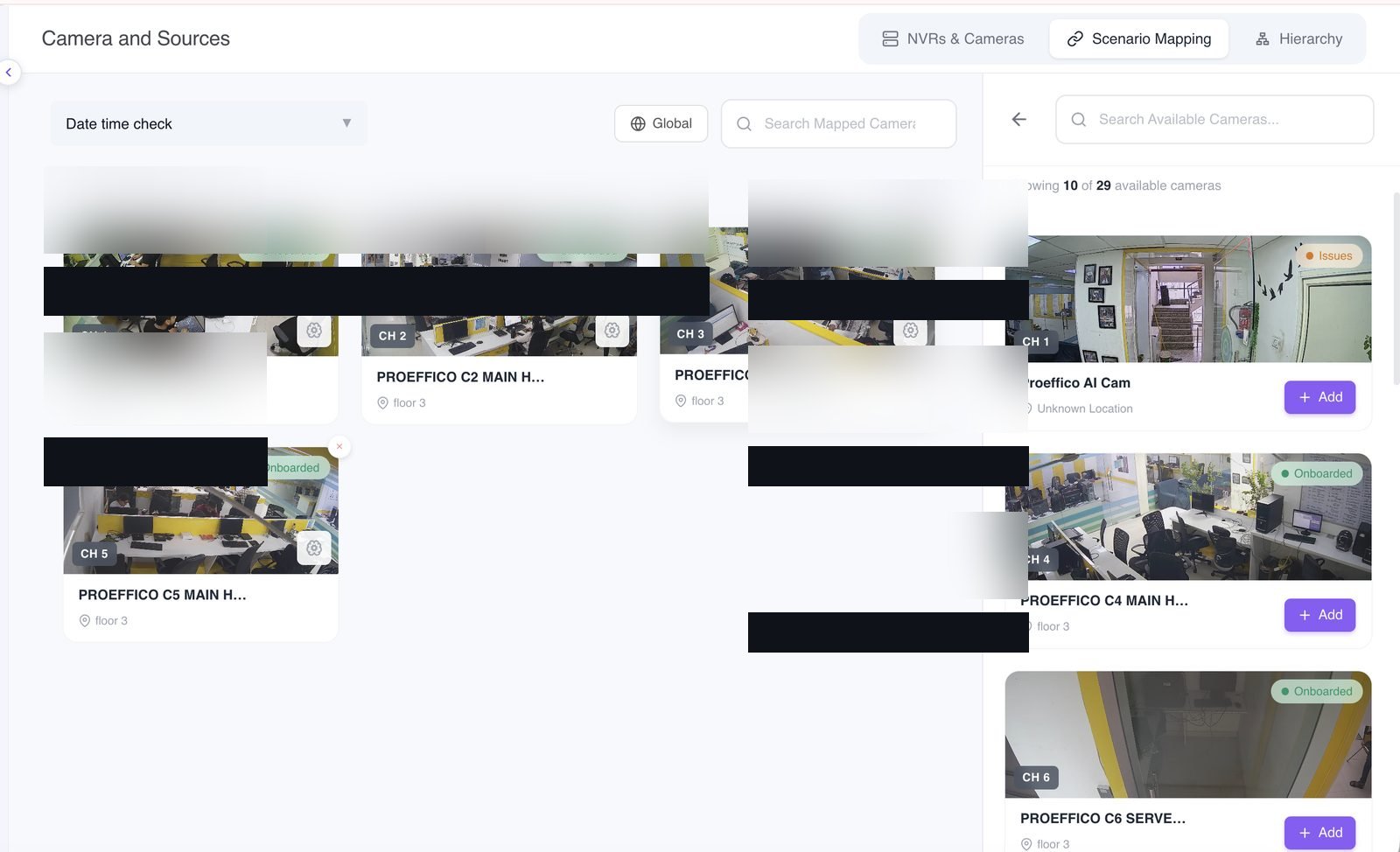
Pick a camera, browse or search available scenarios, set the required regions of interest, validate the configuration, activate. No separate analytics console.
Detection raises an alert
The scenario evaluates the feed and raises an alert with a severity level, a scenario type, a snapshot and a timestamp.
It lands on the timeline
The alert is drawn as a marker on that camera's recording timeline, with a scenario-specific icon and colour, alongside the recording tracks themselves.
One click to the footage
Hover for a preview, enlarge the snapshot, or click through to the footage at that exact moment. Detection and investigation are the same gesture.
Analytics you switch on from inside the VMS
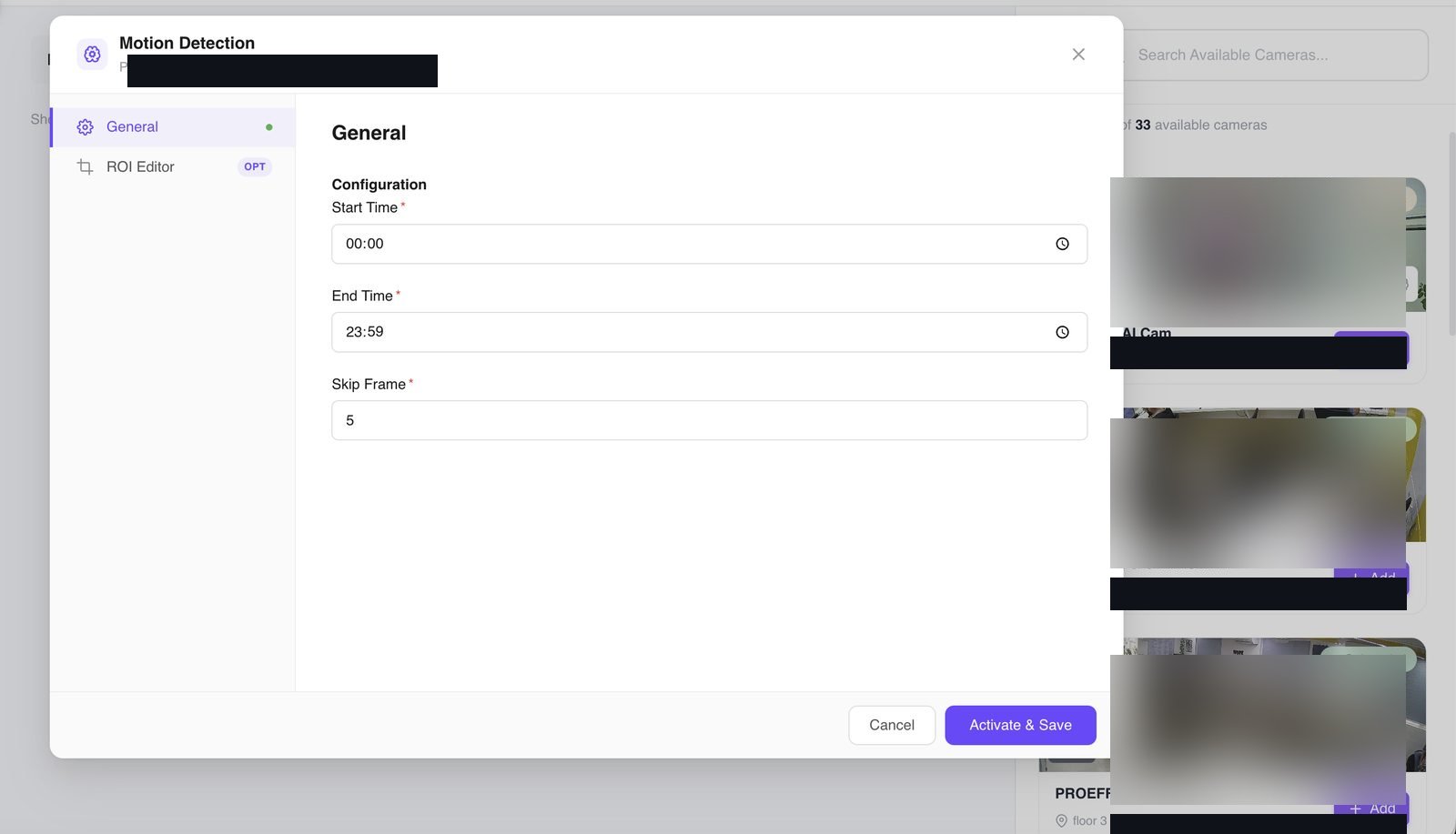
Scenario management is part of the VMS, not a separate analytics product. Open a camera and you can see which scenarios are available on it, search them by name, and activate or deactivate them there and then.
- Active versus total scenario counts visible per camera
- Scenario settings and required regions of interest edited in place
- Configuration validated before a scenario is activated
- Licensed camera limits enforced rather than silently exceeded
- Search scenarios by name across what is available
- Deactivate a scenario as easily as you turned it on
What can the AI detect?
Scenario categories available in the VMS. Which of these are live on a given camera depends on what has been licensed and configured for it.
Safety
- Fire and smoke
- PPE
- Mask
- Falls
- Electrical
- Water leak and flooding
Security
- Intrusion and perimeter
- Violence
- Loitering
- Abandoned object
- Camera tampering
- Absence or missing person
Operations
- Crowd and occupancy
- Queue
- Footfall
- Vehicle and number plate
- Over-speeding
How do you stop a shift drowning in alerts?
Severity and scenario coding turn a wall of notifications into a readable timeline. Every alert carries a severity — critical, warning, attention or informational — and each scenario has its own icon and colour. Scanning a timeline tells an operator which stretches of the shift contain something urgent before they open anything.
The other half of the answer is configuration. Scenarios are activated per camera with their own regions of interest, so a camera only produces the detections that make sense for what it is pointed at. A loading bay does not need to raise queue alerts, and a till does not need perimeter intrusion. Getting that right at setup is what keeps the alert count honest.
AI smart alert FAQs
What are AI video alerts?
AI video alerts are notifications generated by analytics scenarios running against a camera feed, rather than by a person watching a screen or by a motion sensor. A scenario such as fire and smoke, PPE compliance or perimeter intrusion evaluates each frame and raises an alert when its conditions are met. In VIZO361 those alerts are drawn as markers on the camera's recording timeline, so the detection and the footage that produced it are in the same place.
What can the AI detect?
Scenario categories include fire and smoke, PPE, mask, violence, intrusion and perimeter, over-speeding, vehicle and number plate, crowd, occupancy, queue and footfall, loitering, camera tampering, water leak and flooding, abandoned object, falls, electrical, and absence or missing person. Which scenarios are available on a given camera depends on what has been licensed and configured for it, and the VMS shows active versus total counts per camera.
How are AI alerts different from motion detection alerts?
Motion detection fires on pixel change, so it cannot distinguish a person climbing a fence from a tree moving in the wind. An AI scenario is evaluating what is in the frame against a specific condition — is that person wearing a helmet, is that smoke, is that vehicle stationary in a zone where it should not be. The practical difference is the volume of alerts a shift has to triage, and how many of them turn out to be worth looking at.
Do I have to leave the VMS to turn analytics on?
No, and this is the main architectural difference from a legacy stack. You open a camera, see which scenarios are available for it, search by name, and activate or deactivate them from inside the VMS. Scenario settings and any required regions of interest are edited in place, the configuration is validated before activation, and licensed camera limits are enforced rather than silently exceeded.
How does an operator get from an alert to the footage?
Click the alert. Alert markers sit on the recording timeline with scenario-specific icons and colours, hovering shows a preview, and a snapshot can be enlarged. Clicking opens the related footage at that moment. There is also a Smart Alerts tab in the camera inspector giving the alert history for that camera, so you can work through a camera's incidents in sequence.
Can alerts be prioritised so a shift is not flooded?
Alerts carry severity levels — critical, warning, attention and informational — and are colour and icon coded by scenario, so a timeline shows at a glance which stretches of a shift contain something urgent. The alerts feed can be filtered, and scenarios can be activated per camera so a camera only produces the detections that make sense for what it is pointed at.
Pick a scenario. Watch it fire on your camera.
Tell us which detections matter on your site and we will switch them on against your own feeds, then show you the alert landing on the timeline.
Book a demo