Playback and forensic video investigation
Move between live and recorded footage without leaving the view. Play several cameras back at the same moment, navigate the timeline precisely, and get back to live in one click.
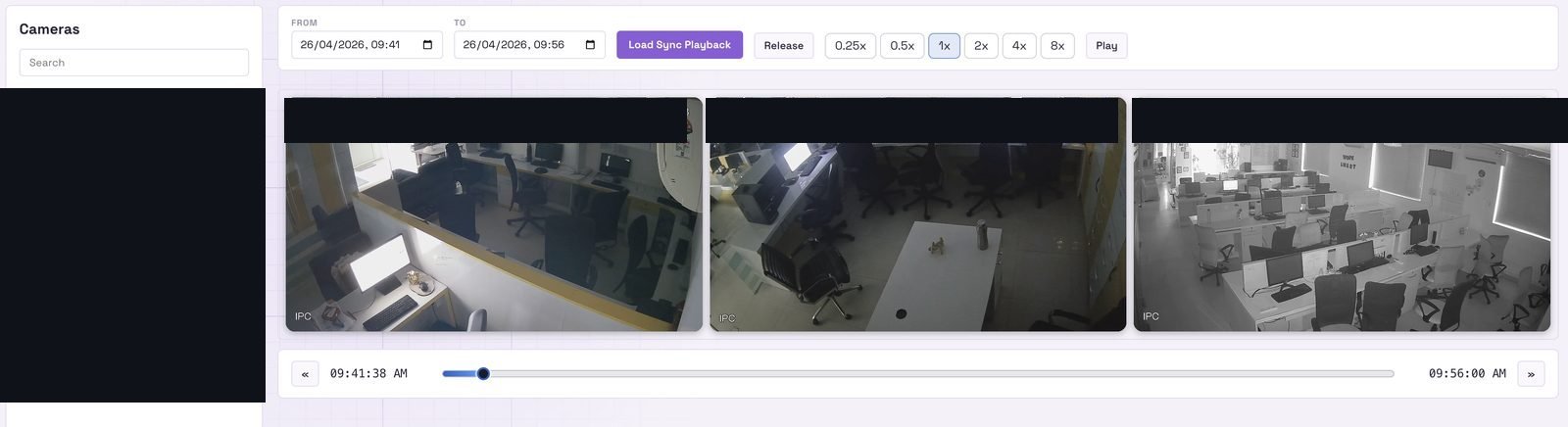
What is CCTV video playback software?
CCTV video playback software is the part of a video management system that lets you go back through recorded footage — choose a date and time, scrub a timeline, jump forward and back, change speed, and watch several cameras at the same moment together. Live monitoring is what a shift does. Playback is what an investigation runs on, and it is usually where a VMS either earns its keep or wastes an afternoon.
The typical frustration is not that footage cannot be found. It is the friction around finding it: switching into a separate playback application, losing the layout you were monitoring, opening cameras one at a time and mentally aligning their clocks, and copying a timestamp from an alert in one system into a search box in another.
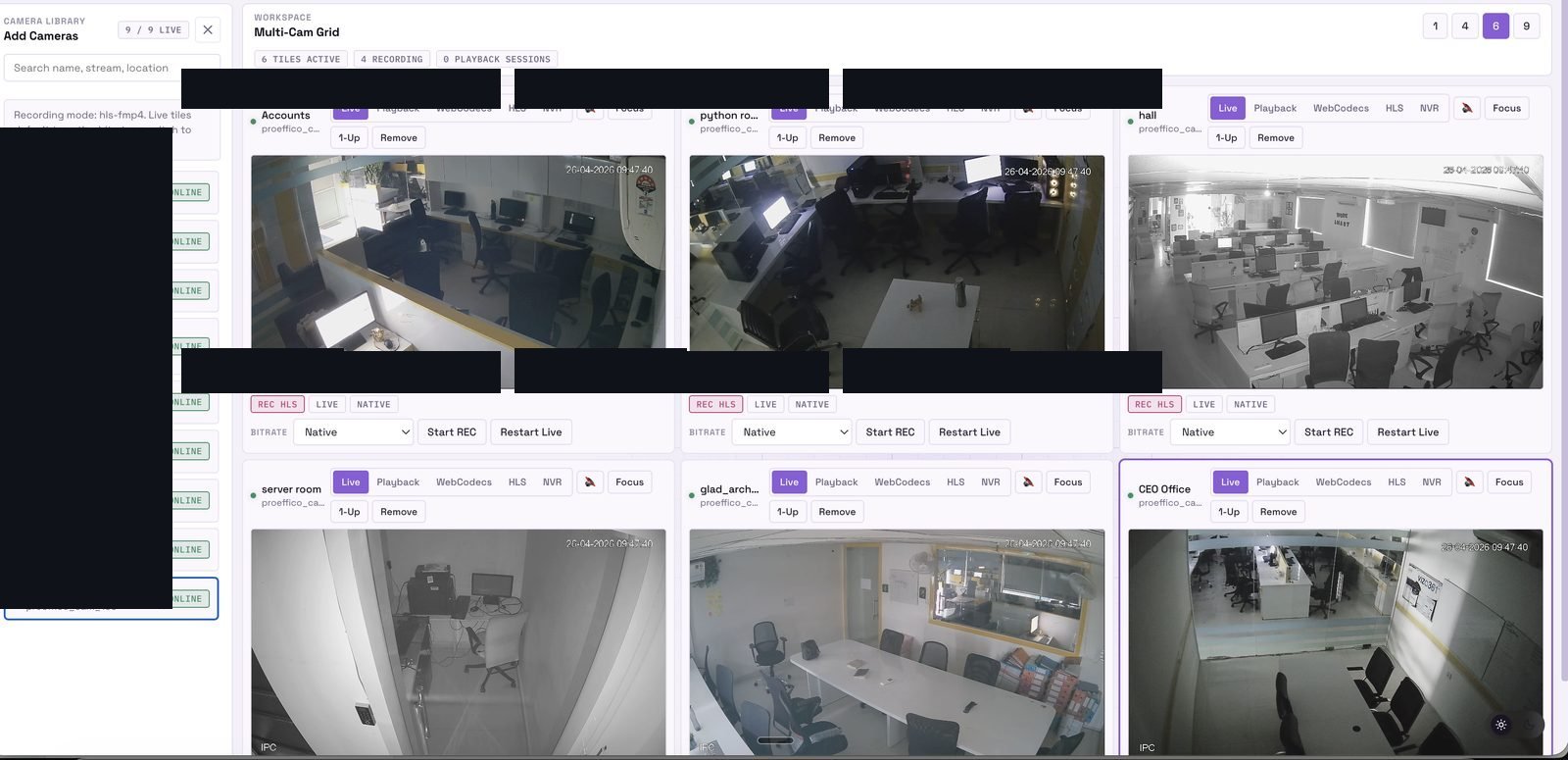
VIZO361 handles playback inside the monitoring view. Live and recorded video switch seamlessly, multiple cameras play back synchronised at the same moment, a temporary playback view preserves the layout you started from, and one click returns you to live when you are done.
Synchronised multi-camera playback
Every camera in the view sits at the same moment and moves together as you scrub. That is what makes it possible to follow a person or a vehicle across a site rather than reconstructing the sequence afterwards from separate clips with slightly different clocks.
- Seamless switching between live and recorded video in the same view
- Configurable concurrent-channel limit keeps large views responsive
- Pick the relevant cameras when a view exceeds the channel limit
- Temporary playback views preserve the original layout
- Return to the live view you started from when the investigation ends
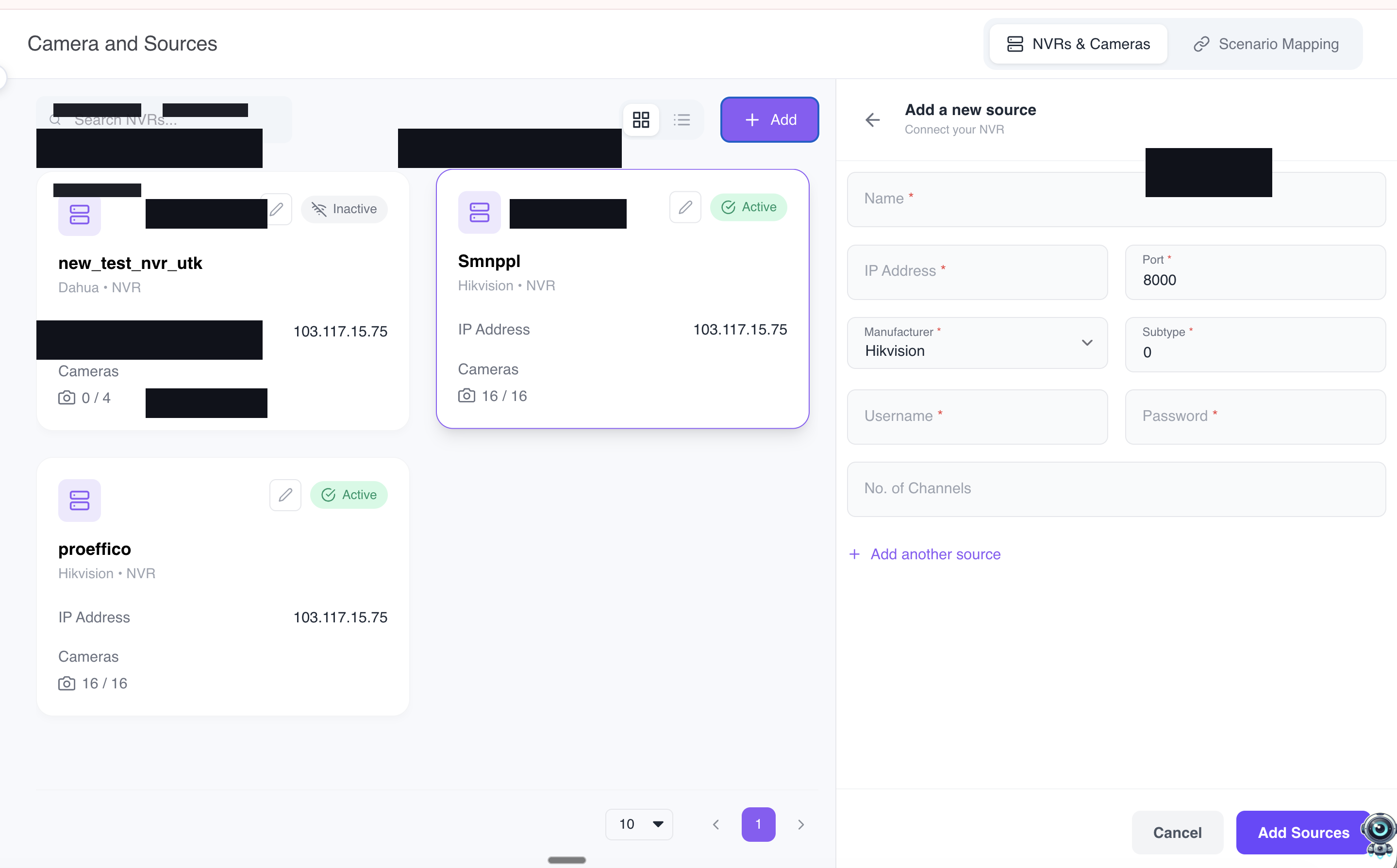
- Choose the source: VMS server recordings, or a connected camera or NVR
- Global source toggle with a per-tile indicator of the active source
How precise is the timeline?
The timeline shows per-camera recording tracks with available and unavailable footage marked, so you can see where coverage actually exists before you start hunting. Navigation runs from coarse to fine: day-based movement for orientation, scrubbing for a general area, fixed jumps for closing in, and precise date and time entry when you already know the moment you want.
Alerts are an entry point too
AI smart alerts sit as markers on the same recording timeline, with scenario-specific icons, colours and severity. Clicking one opens the footage at that moment, which means most investigations do not start with a search at all — they start from a detection. See how AI smart alerts work.
Captures: finding a person in the footage
A central captures feed collects detections for the active view and updates live, with per-camera history available in the camera inspector. During playback you see the historical captures for the period you are reviewing rather than only what is happening now.
- Filter captures by type
- Classifications: person, person of interest, visitor, guard, unknown
- Switch between the cropped face and the full frame, and enlarge either
- Click a capture to jump straight to its timestamp in the footage
- Related frames surfaced alongside the capture
- Progressive loading and timezone-aware timestamps
The camera inspector
The inspector gives you a detailed workspace for one camera without leaving the monitoring view. It carries an always-available player that works in live or playback, and it can be opened at a chosen incident timestamp — so clicking an alert or a floor-plan marker drops you into the right camera at the right moment.
Player that follows you
Live or playback, expandable and restorable, or collapse the video entirely when you need more room for the data.
Captures tab
The capture history for this camera, filterable and clickable through to the footage at each timestamp.
Smart Alerts tab
The alert history for this camera, so you can work through its incidents in sequence rather than hunting the timeline.
Camera info tab
Details about the camera itself, alongside the stream health and technical stats available in the monitoring view.
The inspector also opens from a floor plan. Click a camera marker on an uploaded building plan and you get a live mini-VMS view of that camera in place, which is usually faster than finding the same camera in a tree when you already know where on the site you are looking.
Playback and investigation FAQs
What is CCTV video playback software?
CCTV video playback software is the part of a video management system that lets you go back through recorded footage: choose a date and time, scrub a timeline, jump forward and back, change speed, and watch several cameras at the same moment together. It is what an investigation actually runs on. In VIZO361 playback is not a separate mode you switch into and lose your place — you move between live and recorded video inside the same monitoring view.
Can I play several cameras back at the same timestamp?
Yes. Multi-camera playback is synchronised, so every camera in the view sits at the same moment and moves together as you scrub. That is what lets you follow a person or a vehicle across a site rather than reconstructing a sequence from separate clips. A configurable concurrent-channel limit keeps large views responsive, and you pick the relevant cameras when a view has more than the limit allows.
Do I lose my live layout when I start an investigation?
No. A temporary playback view preserves the original layout, and when the investigation ends you return to the live view you started from. That matters in a control room, where the layout an operator is monitoring is not something they should have to rebuild after every review.
How precise is the timeline navigation?
You can click or scrub the timeline, jump by plus or minus 10 seconds and plus or minus 30 seconds, adjust playback speed, zoom and pan the timeline itself, and enter a precise date and time or a date range. The timeline shows per-camera recording tracks with available and unavailable footage marked, loads in response to the viewport, buffers ahead, aligns multiple cameras, and is timezone-aware. One click returns you to the live edge.
Can playback come from an existing NVR rather than the VMS?
Yes. You choose the source between VMS server recordings and a connected camera or NVR. A global toggle switches the source for the view, and each tile shows an indicator of the source it is currently playing from, so an investigator always knows where the footage in front of them came from.
How do I search for a specific person or event in the footage?
The captures feed collects detections for the active view and updates live, with per-camera history in the camera inspector. Captures are filterable by type and classified as person, person of interest, visitor, guard or unknown, you can switch between the cropped face and the full frame, enlarge either, and click a capture to jump straight to its timestamp in the footage. Related frames are surfaced alongside it, and AI smart alerts on the timeline give you the other entry point into the same footage.
Bring us an incident. We will find it live.
Pick a time window on your own cameras and we will run the investigation in front of you — synchronised playback, captures, and the timeline.
Book a demo