VIZO361 VMS — a next-generation video management system
Live monitoring, recording, playback and AI in one browser-based console. Cloud-native by default, on-premise where your data has to stay inside your own walls — the same product either way.
What is a video management system?
A video management system (VMS) is the software that connects to your cameras and recorders, streams live video to operators, records and retains footage, and provides the timeline, search and playback tools used to investigate an incident afterwards. Cameras capture pixels. Recorders keep them. The VMS is the console a security or operations team actually works in — the place where someone watches a gate, pulls up last Tuesday afternoon, finds the two minutes that matter, and exports it.
For most of the last two decades that console was a Windows application installed on every workstation, wired to a fixed grid of camera tiles, with video analytics sold as a separate product that lived somewhere else entirely. You detected an event in one system and then went looking for the footage in another. Upgrades meant repackaging a desktop client. Adding a second site usually meant a second install and a second login.
VIZO361 VMS is built the other way around. It is a browser application, so there is nothing to install and nothing to keep in version step. AI scenarios are turned on and configured inside the VMS against the same cameras you are already watching. And when an AI scenario fires, the alert is drawn onto the recording timeline of the camera that saw it, so the distance between “something happened” and “here is the footage” is a single click.
VIZO361 VMS vs a legacy VMS
The difference is architectural, not cosmetic. Here is where a cloud-native, AI-native VMS behaves differently from the classic client-server model.
| Capability | Legacy VMS | VIZO361 VMS |
|---|---|---|
| Operator client | Desktop application installed per workstation | Browser — nothing to install or patch |
| Layout model | Fixed grids, tiles snap to predefined cells | Unbounded canvas plus 2x2 / 3x3 / 4x3 presets |
| Video analytics | Separate product, separate console, separate licence | Scenarios activated and configured inside the VMS |
| Where alerts appear | In a separate alerts application or an email | As markers on the camera recording timeline |
| Live transport | Proprietary client protocol or long-latency HLS | WebRTC live, HLS for recorded playback |
| Digital zoom | Often a second stream or a client-side crop | Independent tile reusing the decoded stream |
| Sharing a view | Rebuild the layout on each workstation | Share the saved view with organisational roles |
| Deployment | On-premise only, or a cut-down cloud variant | Cloud or on-premise — the same product and UI |
Why we call it next-generation
Not a longer feature list — a different set of architectural decisions, each of which changes what an operator can actually do in a shift.
Browser-based, no fat client
Operators open a URL. There is no per-workstation install to package, patch or license, and no desktop client version to keep in step with the server.
AI configured inside the VMS
Activate and deactivate analytics scenarios per camera from the VMS itself. See active versus total counts, edit scenario settings and required regions, and validate a configuration before you switch it on.
Alerts land on the timeline
AI detections are drawn as markers on the recording timeline with scenario-specific icons and colours. Clicking an alert opens the related footage. Detection and investigation are the same click.
WebRTC live, HLS playback
Live streaming runs over WebRTC, recorded playback over HLS, with WebCodecs used where the browser supports it. Shared stream management avoids opening duplicate connections to the same camera.
Digital zoom without a second stream
Draw a region over a live image and it becomes an independent, movable, resizable tile. It reuses the already-decoded stream, so a zoom window adds no extra camera connection.
Unbounded layout canvas
Move and resize tiles anywhere rather than filling a fixed grid. Multi-select, bulk actions, fit-to-view, adjustable tile spacing and persistent layouts per user.
How does live monitoring work?
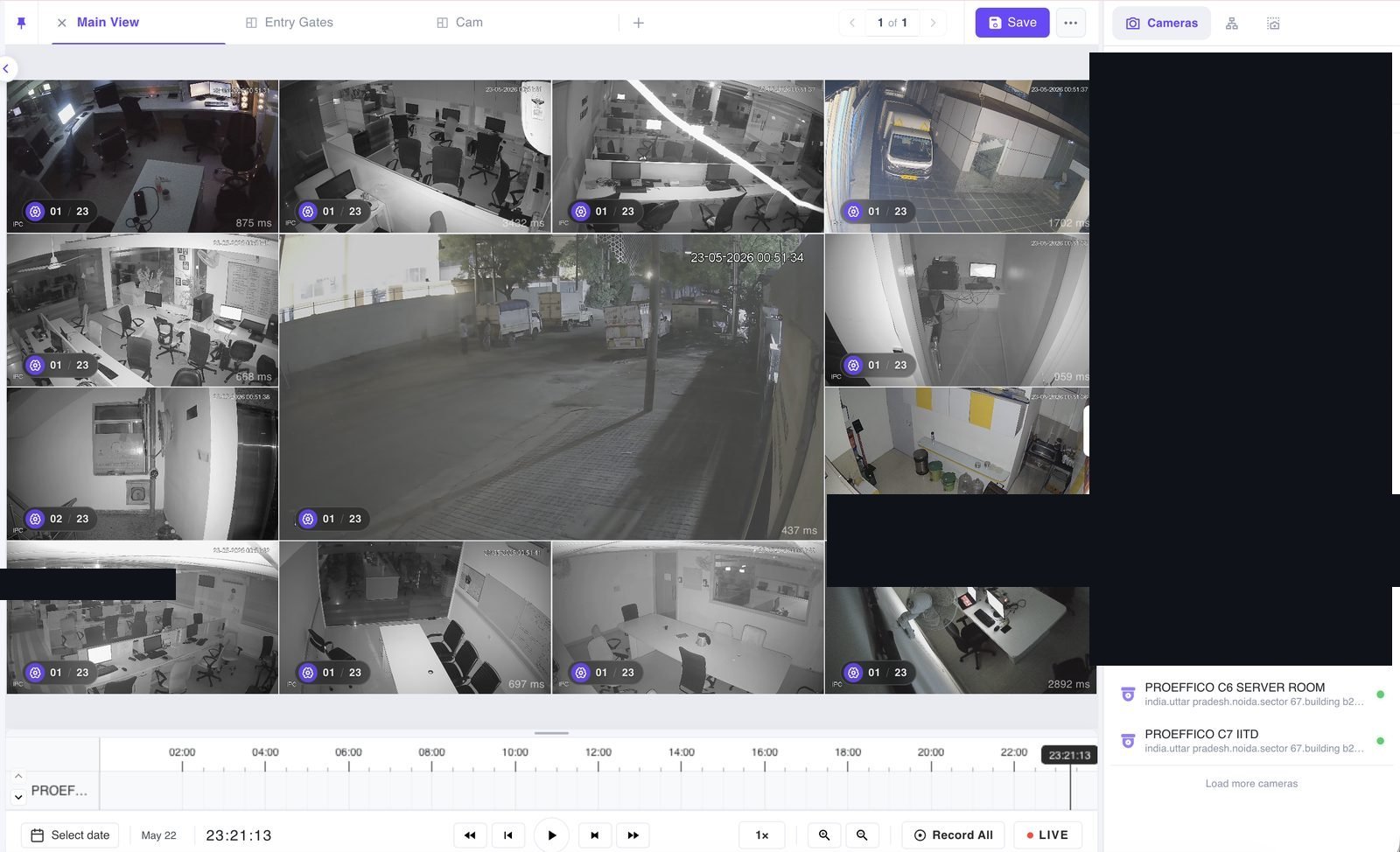
You build a monitoring view by dragging cameras, or whole location groups, onto a canvas and then saving it under a name. Tiles can be moved and resized anywhere rather than snapping into a fixed grid, and the stream keeps playing while you reposition it. You can multi-select tiles individually, as a range, or with a marquee, and then act on all of them at once.
- Create, name, save and delete as many views as you need
- Drag a whole hierarchy node in to load every camera beneath it
- Refresh one camera, the selection, or every stream in the view
- Maximise, fullscreen focus mode, mute or mute-all, screenshots
- Manual recording per camera or for the whole view, with a live duration widget
- Stream health, technical stats and a camera info panel per tile
- Lockable top bar, collapsible timeline and a resizable side panel
- Unsaved-change warnings and recording safeguards when you switch views
How does it handle bandwidth across many cameras?
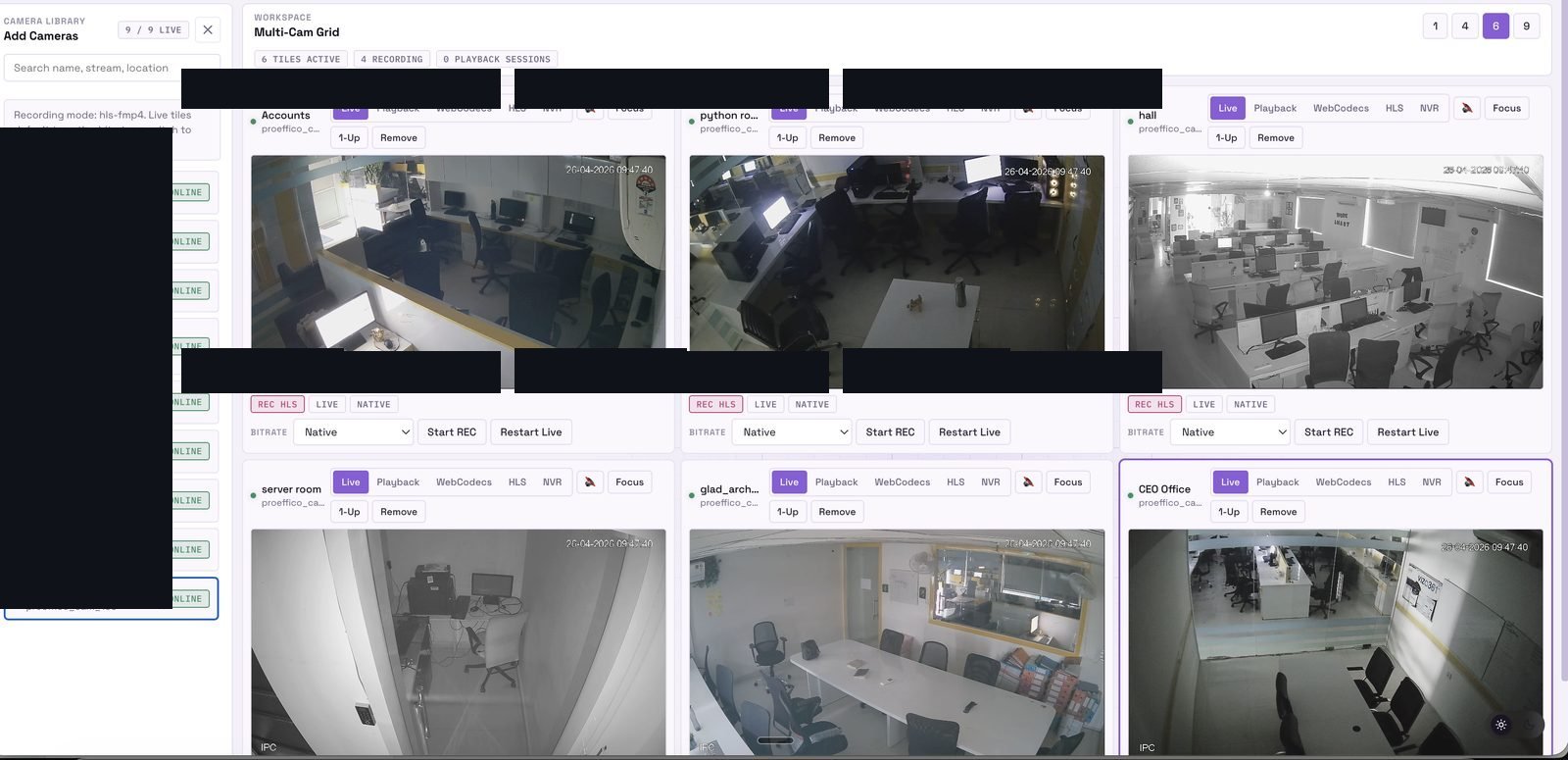
Stream quality is selected automatically from the size the tile is being displayed at. A wall of small tiles pulls bandwidth-efficient substreams; a maximised tile pulls the high-quality main stream. Operators can override that manually at camera, selection or whole-view level, and cameras that do not expose a substream are handled gracefully rather than failing. Presentation modes cover fit, fill with crop, stretch and a 125% zoom, and reconnection controls plus diagnostic overlays are there when a feed misbehaves.
A hierarchy that matches the estate
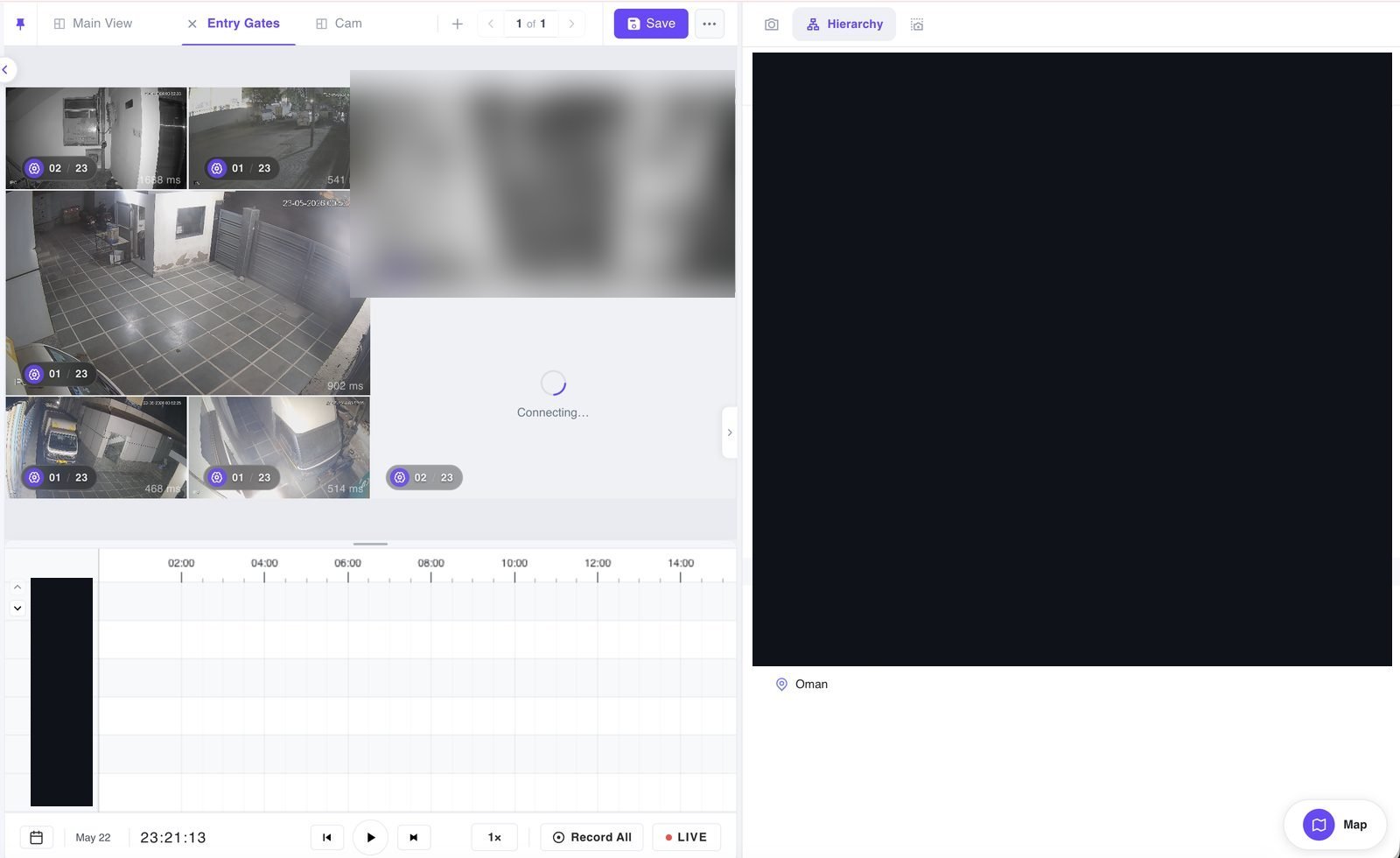
Organise cameras from country down through state, city, floor and any custom levels you need. Search reveals matching branches in place. Drag a location group straight into a view to load everything under it, or jump directly to a floor plan from the tree. A map-based visualisation gives you the same hierarchy geographically.
Floor plans and site maps
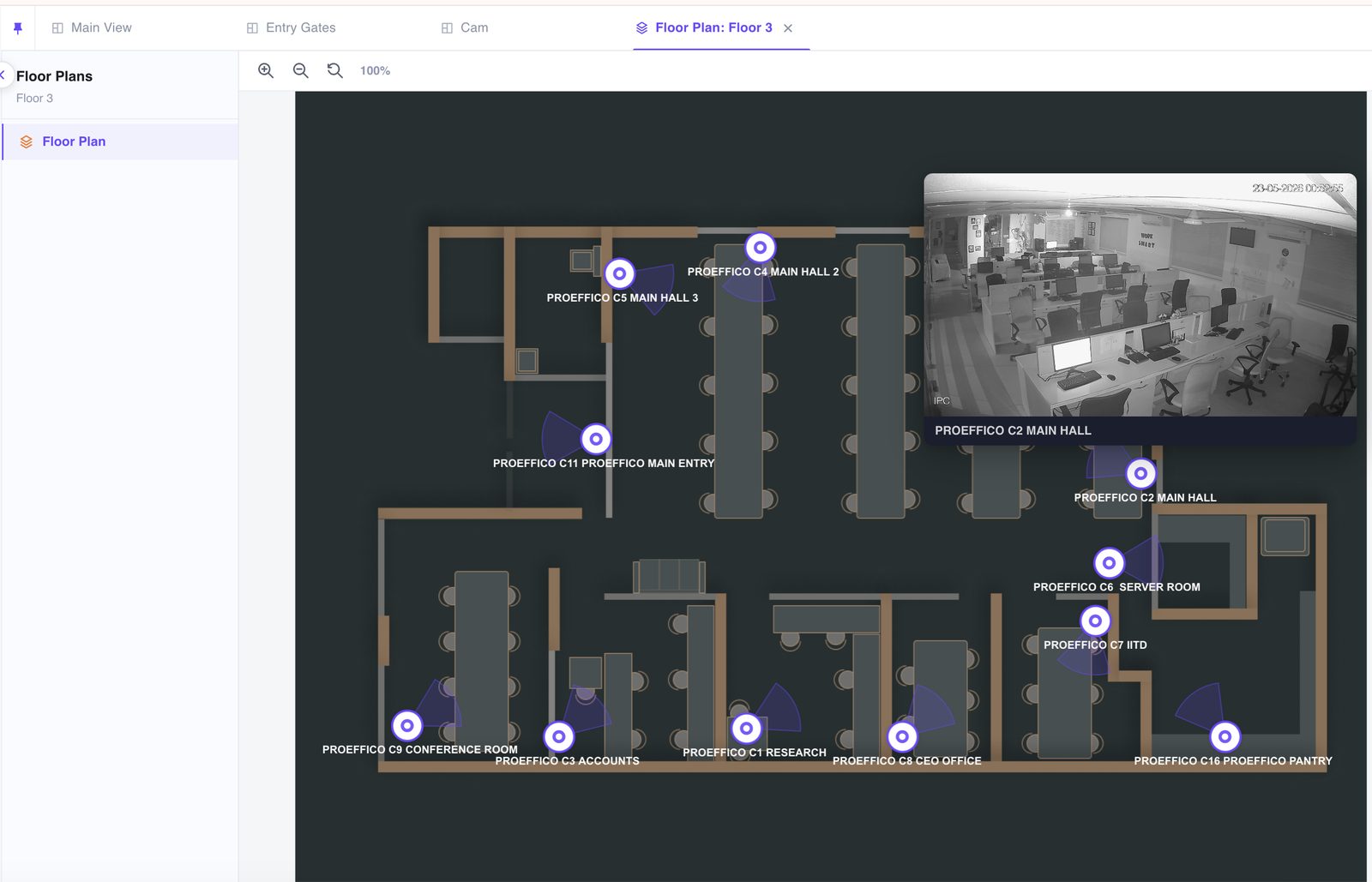
Place cameras on uploaded building plans with directional markers showing field of view. Click a marker for a live mini-VMS inspector. Zoom, reset, switch plans, and overlay footfall heatmaps with a date range and zone-level insights where the analytics support it.
Finding the right camera
The camera catalogue is searchable and filterable by whether a camera is already on the current view, not on it, online or offline. Select several at once and drag them in as a batch. Previews carry enough information to confirm you have the right feed before you commit, and the list loads progressively so a large estate does not stall the page.
Sharing views with the right teams
Saved views are shared with organisational roles, not copied between workstations. Browse roles by department, grant or revoke for several roles at once, see how many roles hold access, or revoke all in one action. Owners, shared users and master-list administrators have different capabilities, so a view you shared for visibility cannot be quietly edited by its recipients.
Explore the VIZO361 VMS
Five deeper looks at the parts of the system that tend to decide an evaluation.
Cloud VMS
Browser-based video management with no server to rack and no client to install. How a cloud VMS differs from a legacy on-premise deployment.
Read moreOn-Premise VMS
The same product on your own infrastructure, for data-residency, air-gap and latency requirements. Self-hosted video management for enterprises.
Read moreVideo Wall
Send a saved view to a separate display, assign views to monitors, and run an edge-to-edge control-room wall you can control remotely.
Read moreAI Smart Alerts
Fire, PPE, intrusion, crowd, tampering and more, marked directly on the recording timeline with severity, previews and one-click footage.
Read moreInvestigation & Playback
Synchronised multi-camera playback, precise timeline navigation, captures, and a camera inspector for forensic review without leaving the view.
Read moreCloud VMS vs on-premise: which should you choose?
Choose cloud unless a specific constraint forces on-premise. The cloud deployment is the shortest path to a working console — nothing to rack, nothing to install on operator machines. Choose on-premise when video cannot leave a jurisdiction or a site, when the network is air-gapped, or when latency to an external network is unacceptable for the way your control room works. Both run the same application with the same interface, so the decision is about infrastructure and compliance, not about giving up features.
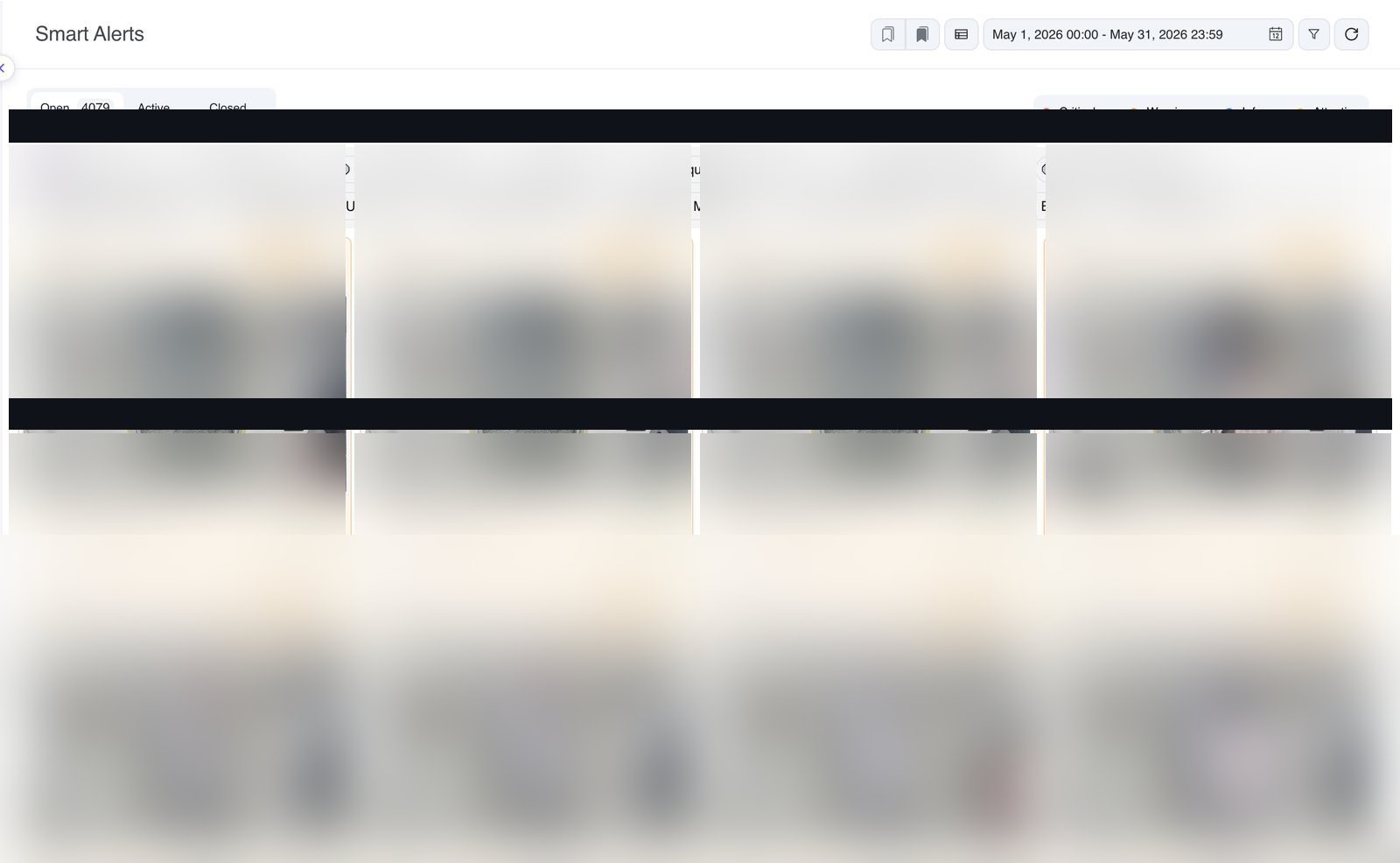
AI that lives inside the VMS
You do not leave the VMS to manage analytics. Open a camera, see which scenarios are available for it, search by name, and activate or deactivate them from there. Active versus total counts are visible at a glance, scenario settings and required regions of interest are edited in place, configuration is validated before activation, and licensed camera limits are enforced rather than silently exceeded.
Detections come back as timeline markers with scenario-specific icons, colours and severity — critical, warning, attention or informational — across categories including fire and smoke, PPE, mask, violence, intrusion and perimeter, over-speeding, vehicle and number plate, crowd, occupancy, queue and footfall, loitering, camera tampering, water leak and flooding, abandoned object, falls, electrical, and absence or missing person.
Who uses a VMS like this?
Any organisation whose cameras are spread across more than one building and whose security team is expected to do more than record. Manufacturing sites use it for PPE and safety scenarios across production areas and yards, with floor plans that match the shop-floor layout. Retail chains use it to roll many stores into one hierarchy and one console, with footfall heatmaps on the store plan and cash and queue scenarios on the tills. Logistics and warehousing use it for dock and perimeter coverage, where alerts on the timeline turn a long shift into a short list of things that need reviewing.
The common thread is that nobody has time to watch every screen. The VMS is what reduces a wall of live video to the handful of moments a human should look at, and then puts the footage for those moments one click away.
Video management system FAQs
What is a video management system (VMS)?
A video management system is the software layer that connects to your cameras and recorders, streams live video to operators, records and stores footage, and gives you the timeline, search and playback tools to review an incident afterwards. It is the console your security and operations teams actually sit in front of. Cameras capture the video; the VMS is what turns those feeds into something a team can monitor, investigate and act on.
What makes VIZO361 a next-generation VMS?
Six things. It runs entirely in the browser, so there is no fat client to install or update on every workstation. AI scenarios are activated and configured inside the VMS rather than in a separate analytics product. AI alerts are drawn onto the recording timeline, so investigation is one click away from detection. Live video is delivered over WebRTC. Digital zoom windows reuse the already-decoded stream instead of opening another camera connection. And the layout is an unbounded canvas rather than a legacy fixed grid.
Is VIZO361 VMS cloud or on-premise?
Both. The default is cloud-native and browser-based. Enterprises with data-residency, air-gap or latency requirements can run exactly the same product on their own infrastructure. It is the same application and the same interface, only the hosting boundary changes. Operators do not have to relearn anything when a deployment moves from cloud to on-premise.
Does the VMS work with cameras and NVRs we already own?
Yes. The VMS can play back from its own recording storage or from a connected camera or NVR, and you can switch the source per view with a global toggle that shows the current source on each tile. That means existing recorders keep their role as a storage tier while the VMS provides the live monitoring, AI and investigation layer on top.
How many cameras can one operator watch at once?
Live views are built on an unbounded layout canvas rather than a fixed grid, so you can place as many tiles as the display and the operator can usefully handle. Grid presets of 2x2, 3x3 and 4x3 are available for conventional layouts, and stream quality is selected automatically based on tile size so a wall of small tiles uses bandwidth-efficient substreams. Synchronised playback has a configurable concurrent-channel limit so large views stay responsive during an investigation.
Can different teams have different views of the same camera estate?
Yes. Monitoring views are saved objects that can be shared with organisational roles. You browse roles by department, grant or revoke access for several roles at once, and see how many roles currently hold access. Owners, shared users and master-list administrators have different capabilities, so a shared view cannot be edited by someone who was only given visibility.
Evaluating a VMS? Watch it run on your cameras.
Bring a handful of cameras from one site. We will stand up a live view, switch on the AI scenarios that matter to you, and let your operators drive it themselves.
Book a VMS demo