Video wall software for control rooms
Send any saved monitoring view to a separate display. Edge-to-edge video with no application chrome, synchronised with the operator console, driven from the same browser.
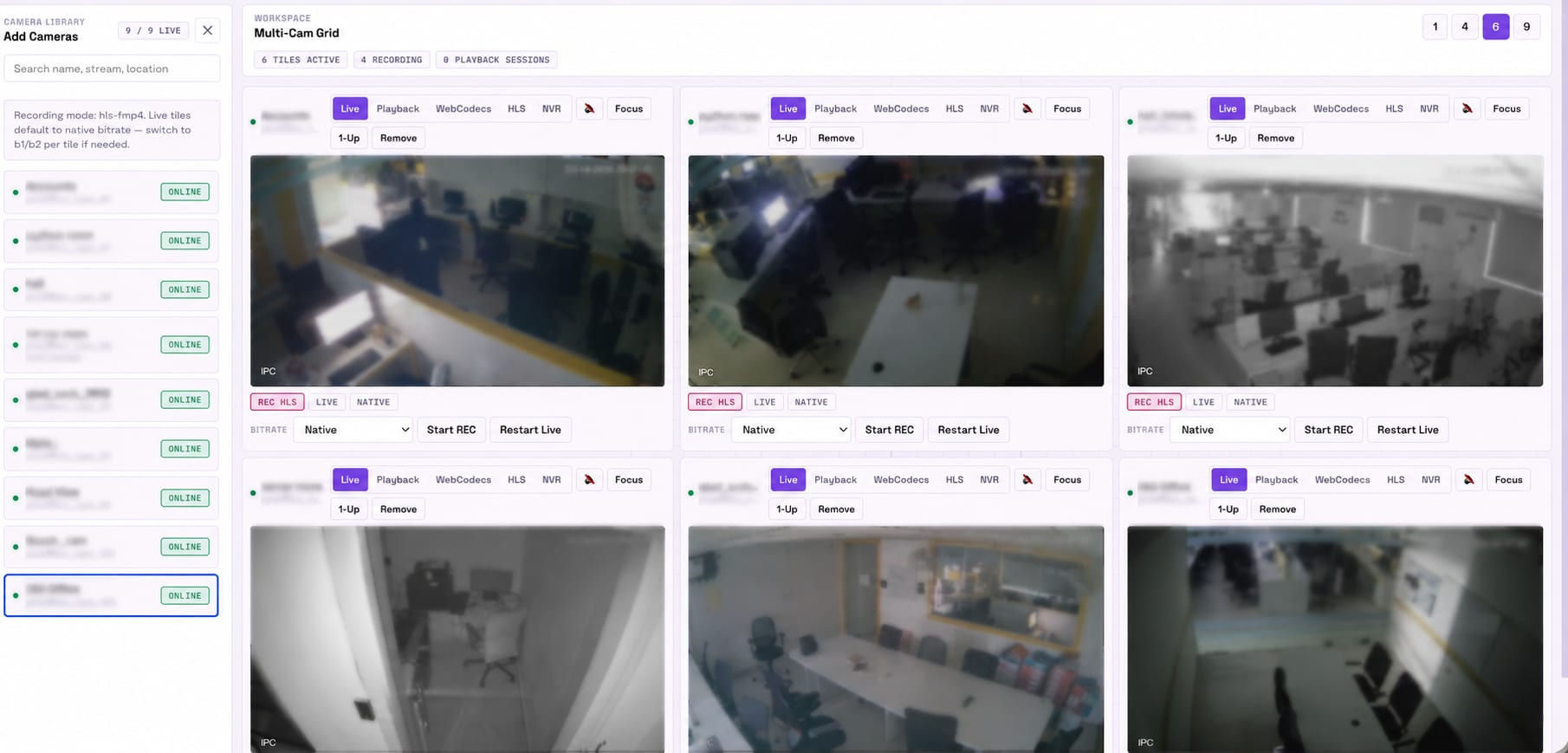
What is video wall software?
Video wall software drives one or more secondary displays so camera feeds fill them edge to edge, without the window borders, toolbars and browser chrome that normally surround an application. The operator keeps the working console on their own screen. The room gets a clean, readable surface showing whatever the shift needs to keep an eye on.
In VIZO361 the wall is not a separate product. It starts from a saved monitoring view — the same views you build by dragging cameras and location groups onto the layout canvas, and the same views you share with organisational roles. You assign a view to a display and it becomes the wall. Nothing has to be rebuilt in a different tool, and there is no separate wall controller application to install and keep in version step with the VMS.
Because it is the same browser-based console, a control room can be reorganised in the middle of a shift. A new view can be built, saved and thrown onto a display in the time it takes to drag a location group in.
What the wall does
Assign views to monitors
Detect the displays the browser exposes and assign a saved view to each one. A manual popup fallback covers environments where detection is blocked.
Edge-to-edge, zero gap
The wall renders without application chrome and goes fullscreen on the assigned display, so the room sees video rather than a browser window.
Synchronised state
Layout, camera changes, live or playback mode, timestamp, play and pause, and speed all stay in step between the console and every wall window.
Controlled remotely
Open several wall windows, drive them all from the operator console, and close any of them without leaving your desk.
How does the wall stay in sync with the operator?
Everything that defines the state of a view is mirrored to the wall. That means the room is never looking at a stale picture while the operator works on something else — a common failure mode when a wall is driven by a separate controller with its own idea of what should be on screen.
- Layout — tile positions and sizes as the operator arranges them
- Camera changes — cameras added to or removed from the view
- Live or playback state, so the wall follows an investigation
- Current timestamp during playback
- Play, pause and playback speed
- Zero-gap presentation with no application chrome on the wall display
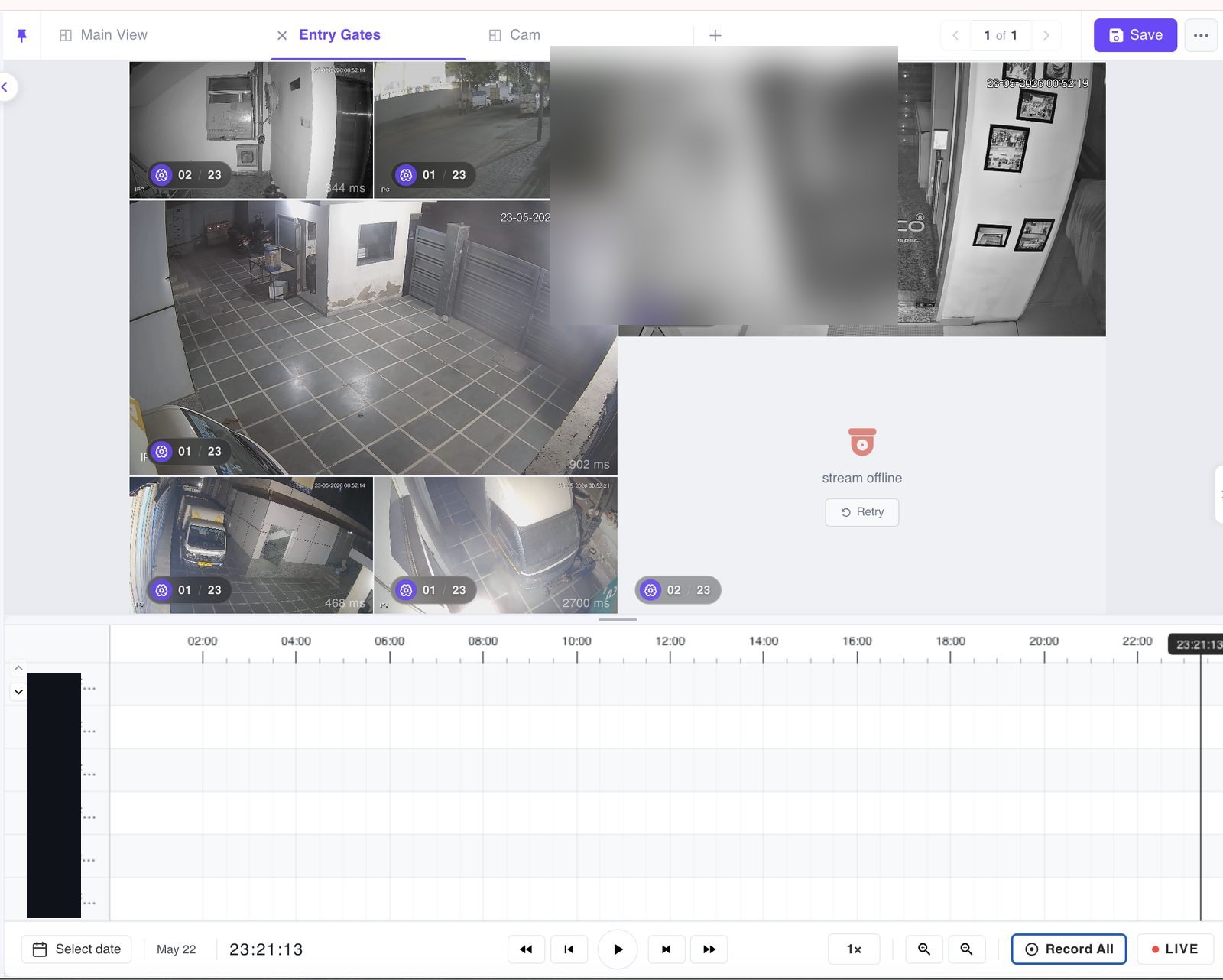
Running a wall day to day
Build the view first
Drag cameras or a whole location group onto the canvas, arrange the tiles, adjust spacing, use fit-to-view or a 2x2, 3x3 or 4x3 preset, then save the view under a name. The wall is just that view on another screen.
Assign it to a display
Where the browser exposes monitor information, pick the target display directly. Where it does not, the manual popup fallback lets an operator place the window and take it fullscreen themselves.
Share it with the shift
Views are shared with organisational roles rather than copied per workstation, so the next shift opens the same wall without rebuilding it. Owners and shared users have different edit rights.
Bandwidth on a dense wall is handled the same way as anywhere else in the VMS: stream quality is chosen automatically from the size each tile is displayed at, so a wall of small tiles uses bandwidth-efficient substreams while a maximised tile pulls the high-quality main stream.
Video wall FAQs
What is video wall software?
Video wall software drives a set of displays in a control room or operations area so that camera feeds appear edge to edge across them, without the browser or application chrome that normally surrounds a window. In VIZO361 you take a saved monitoring view, send it to a separate display, and it fills that display as a clean video surface while you keep working in the main console on your own screen.
How do I send a view to a second monitor?
You pick a saved view and assign it to a monitor. Where the browser exposes the information, VIZO361 detects the available monitors so you can choose one directly. If the browser blocks that detection or the popup, there is a manual fallback so an operator can still place the wall window on the right display and take it fullscreen.
Can one operator run several wall displays at once?
Yes. You can open more than one wall window, assign a different saved view to each, control them all from the main console, and close any of them remotely without walking over to the display. That means a shift handover does not require someone physically touching each screen in the room.
Does the wall stay in sync with the operator console?
Yes. Layout changes, camera changes, live or playback state, the current timestamp, play and pause, and playback speed all synchronise between the console and the wall. If an operator scrubs back to an incident on their own screen, the wall follows, so everyone in the room is looking at the same moment.
Do I need special video wall hardware or a controller?
The wall is driven from the same browser-based console as the rest of the VMS, so the requirement is displays that a workstation can drive and a browser that can put a window fullscreen on each of them. There is no separate wall controller application to install and keep in version step with the VMS.
Can the wall show recorded footage, not just live video?
Yes. The wall mirrors whatever state the view is in. If the console switches the view into playback for an investigation, the wall follows into playback at the same timestamp and the same speed, then returns to live when the console does.
Planning a control room? Let us drive your screens.
We will build a view against your cameras, throw it onto a second display, and show you how the wall follows an operator into playback.
Book a demo